

VAT Return Submission Online: Step-by-Step Guide for 2026
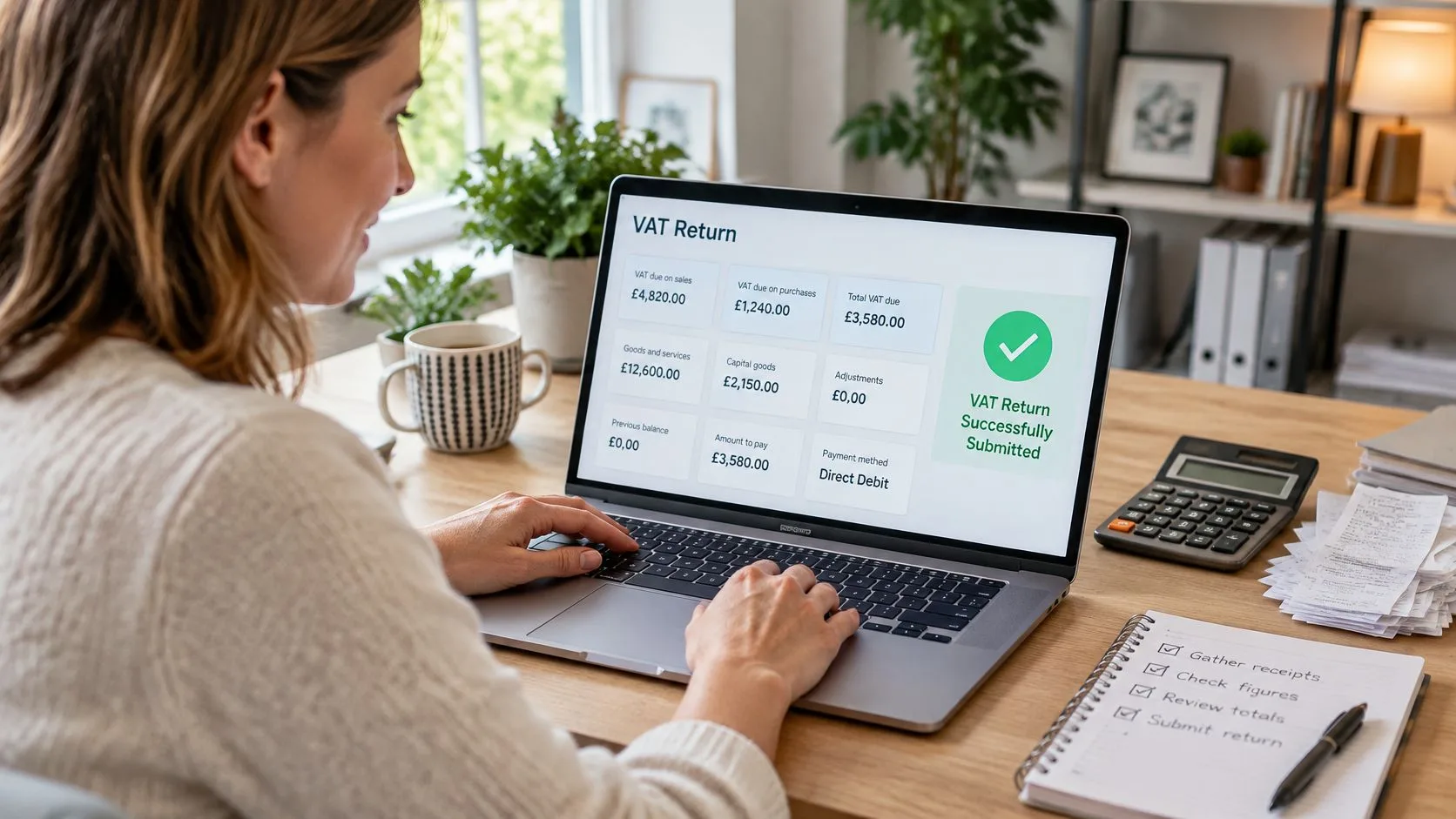
It's the last week of the quarter, your bank feed is three days behind, and the VAT figure in your software doesn't match the spreadsheet you've kept on the side. The deadline isn't the problem. The books underneath it are.
Treat VAT return submission online as the final step in a clean, reconciled quarter, not as a form to fill in under pressure. Get the records right first and the submission itself takes minutes.
How to Submit a VAT Return Online, Step by Step
A return can look ready in your software while a missing bank transaction or incorrect VAT code has skewed the figures. Start by checking the period end date and due date in your VAT online account. Then work through the books before opening the submission screen.

Close and reconcile before you calculate
- Confirm your connection. Check that your software is Making Tax Digital compatible and authorised to connect to HMRC through your Government Gateway account. If the authorisation has expired, renew it before you need to file.
- Close the period properly. Check that bank feeds cover the whole quarter. Match card sales to the date of sale, not the later settlement date. For example, if a café posts card settlements received three days after month end as sales on the settlement date, the timing can distort the return.
- Reconcile the VAT control account. Check that it agrees with the underlying records and investigate suspense items. A balance you cannot explain may point to a missing transaction or incorrect VAT code.
- Keep evidence with the period. File records for reverse charges, imports, fuel scale charges, bad debt relief and partial exemption alongside the quarter they relate to. This makes the figures easier to check when preparing the return.
Practical rule: Record why a transaction has been coded a particular way while the reason is clear. A useful note helps you review the treatment later.
Calculate, check, then submit
- Build the nine boxes from your digital records. Use the figures generated by your software, rather than copying totals into a spreadsheet and retyping them into a return.
- Resolve validation warnings. Check transactions flagged for missing or incorrect VAT codes. Correct the underlying record before proceeding.
- Review the key figures. Compare Box 1 with your sales records and Box 4 with your purchase records. Check that Box 5 is the payment or repayment you expect. Investigate an unexpected result before submitting.
- Finalise and submit. Once the figures agree, lock the period if your software allows it, save an export of the return and workings, submit through the software, and keep the confirmation.
- Check receipt and arrange payment. Confirm that HMRC has received the return, then record the payment due date separately. Filing the return does not itself pay the VAT.
HMRC VAT Notice 700/22 on Making Tax Digital for VAT explains the requirements for keeping digital records in compatible software, calculating the return from those records and authorising its submission through HMRC's API. HMRC can charge penalties for inaccurate returns, with the amount depending on whether the error was careless or deliberate. Check the figures before you submit. If you later find an error, follow HMRC's process for correcting it rather than assuming you can edit the submitted return.
This short walkthrough shows the submission screens you'll work through once your figures are reconciled.
Making Tax Digital software can reduce the time spent on finance and record keeping, but the result depends on the quality of the records entered. HMRC's 2025 analysis of the wider economic benefit of Making Tax Digital estimated annual savings of 26 to 40 hours for businesses using fully functional software. Clean bookkeeping is what makes those figures useful as well as making submission more straightforward.
Deadlines for Every Stagger Group in 2026
Most businesses file quarterly, so a standard year means four returns spread across one of HMRC's three stagger groups. For electronic returns, the return and any payment are due one calendar month and seven days after the period ends.
| Stagger group | Quarter periods end | Return and payment due |
|---|---|---|
| Group 1 (March, June, September, December) | 31 Mar, 30 Jun, 30 Sep, 31 Dec | 7 May, 7 Aug, 7 Nov, 7 Feb 2027 |
| Group 2 (January, April, July, October) | 31 Jan, 30 Apr, 31 Jul, 31 Oct | 7 Mar, 7 Jun, 7 Sep, 7 Dec |
| Group 3 (February, May, August, November) | 28 Feb, 31 May, 31 Aug, 30 Nov | 7 Apr, 7 Jul, 7 Oct, 7 Jan 2027 |
Your stagger group sets your dates, not your legal form. A limited company and a sole trader on the same quarter share exactly the same deadline.
Working the dates backwards
Take three examples from the table. A Group 1 quarter ending 31 March 2026 is due by 7 May 2026. A Group 2 quarter ending 31 January 2026 is due 7 March 2026, and a Group 3 quarter ending 28 February 2026 is due 7 April 2026.
Watch the turn of the year, too. The quarter ending 31 December 2025 fell due on 7 February 2026, which catches businesses that haven't started their January tasks yet.
HMRC guidance on submitting your VAT Return confirms that most businesses must keep digital VAT records and submit returns using software compatible with Making Tax Digital for VAT, a requirement that took effect for all VAT registered businesses from 1 November 2022, and that a return is required for every accounting period, including periods with no VAT to pay or reclaim. So a nil return still has a deadline, and payment can still be due even if the return itself goes in late.
Find your group in your VAT online account rather than guessing from the calendar, then check the exact dates for each period against our guide to the VAT return submission deadline. I'd set two reminders per quarter. One lands three weeks before the deadline to close the books, and one lands a week before to submit, leaving room to fix problems while there's still time.
Choosing Compatible Software for Xero, Apps and Bridging
Most non-exempt UK VAT registered businesses must keep digital records and file through MTD compatible software. Four routes cover nearly every situation, and the right one depends on where your ledger lives.
The four routes compared
- Full accounting software such as Xero: This keeps the ledger, calculates the nine boxes, and submits to HMRC through the API in one place. It's the cleanest option if you're already bookkeeping in the cloud. Check your plan explicitly supports MTD for VAT, because entry level tiers don't always include it.
- Other compatible apps: A lighter app with bank feeds and a VAT return function suits a business that keeps its main ledger elsewhere but wants the filing step handled digitally. The trade-off is another system to reconcile against.
- Bridging software: This links your existing spreadsheet to HMRC and suits businesses with tidy, well structured records. The spreadsheet can hold calculations, but the digital link and record keeping requirements still have to be satisfied end to end. If someone rekeys totals between sheets, that link breaks.
- The VAT online account: This suits simple cases where your circumstances allow it. For most trading businesses it functions as a checking tool for deadlines and filing history rather than the filing route itself.
Manually uploaded totals aren't a complete compliance process on their own. Copying figures from one place to another is precisely where transcription and period cut-off errors enter, and no software can detect a number that was wrong before it arrived.
Pick the route that matches your records today, not the records you plan to have next year. A bridging tool over a messy spreadsheet just files the mess faster.
Before your first live return
Connect the software well ahead of the deadline and confirm the authorised user can sign in. The person submitting needs the Government Gateway access, not just a login to the accounting package.
Use any trial or test environment the vendor offers so you've seen the submission screens before real figures are involved. After your first live filing, check the return appears in your VAT online account. Our overview of Making Tax Digital for VAT covers the sign up and authorisation steps in more detail if you're setting this up for the first time.
What Each of the Nine VAT Return Boxes Holds
The nine boxes are the summary HMRC expects, and most figures should flow from your software rather than being typed in. The table below shows what each one holds.
| Box | Label | What goes in it |
|---|---|---|
| Box 1 | VAT due on sales and other outputs | VAT charged on your UK sales and other outputs |
| Box 2 | VAT due on acquisitions from the EU | VAT due on goods from the EU into Northern Ireland, otherwise usually zero |
| Box 3 | Total VAT due | Box 1 plus Box 2 |
| Box 4 | VAT reclaimed on purchases and other inputs | Input VAT on allowable purchases and imports |
| Box 5 | Net VAT to pay or reclaim | Box 3 minus Box 4; a negative figure is a repayment |
| Box 6 | Total value of sales excluding VAT | All supplies excluding VAT, including zero rated and exempt, in whole pounds |
| Box 7 | Total value of purchases excluding VAT | All purchases excluding VAT, in whole pounds |
| Box 8 | Total value of supplies to the EU excluding VAT | Goods and services sent to VAT registered EU customers, in whole pounds |
| Box 9 | Total value of acquisitions from the EU excluding VAT | Goods received from EU suppliers, in whole pounds |
The three relationships worth memorising
Box 3 must equal Box 1 plus Box 2. If it doesn't, something has been overridden.
Box 5 must equal Box 3 minus Box 4. That's the amount you pay, and a negative Box 5 means HMRC owes you a repayment instead. Boxes 6 to 9 are stated in whole pounds and exclude VAT, which is why they never agree neatly to a VAT inclusive bank total.
Say a Glasgow consultant exports services to an EU client. The value goes in both Box 6 and Box 8, because Box 6 holds all supplies excluding VAT, including zero rated and out of scope sales. Box 1 stays at zero for that supply because it sits outside the scope of UK VAT. The same logic explains zero rated domestic sales, which appear in Box 6 but generate no VAT in Box 1.
Boxes 2 and 9 matter mainly for trade involving Northern Ireland and the EU, so most UK only businesses will see zeros there. That's expected, not a gap.
When a total feels wrong, check two boxes first. Compare Box 1 against your sales report and Box 4 against your purchase report. Nearly every error shows up in one of those two comparisons.
Errors That Stop a Submission and How to Fix Them
Most rejected or flagged submissions fall into three groups: connection problems, duplicate or mismatched periods, and figures that don't reconcile. Match your symptom to a row below before you change anything, because fixing the wrong thing usually creates a second problem.
| Symptom | Likely cause | Fix |
|---|---|---|
| Software cannot connect to HMRC | Authorisation has expired or the Government Gateway access was not granted | Reconnect in the software settings and sign in with an authorised user |
| Submission rejected for a period already filed | The return was filed earlier, possibly through another software | Check the filing history in the VAT online account and do not resubmit |
| Box 3 or Box 5 does not match the ledger | A figure was overridden manually or a formula was broken | Recalculate from the ledger and remove manual overrides |
| Transactions flagged for a missing VAT code | Bank lines were left uncategorised | Assign the correct VAT codes, then rerun the checks |
| Ledger and return totals differ | Cut-off timing, card settlements or partial exemption | Reconcile the control account and document each difference |
| Payment not reflected after submission | Wrong payment reference used | Pay with the reference shown in the VAT online account and check the account |
| Authentication or network error during submission | Session timed out or a service outage | Retry, check HMRC service status and submit early rather than on deadline day |
Reading the pattern, not just the message
Connection failures almost always trace back to an expired authorisation or a user who was never granted access. Reconnecting takes minutes, but only an authorised user can do it, so don't leave this to deadline day.
A duplicate period warning usually means the return was already filed through other software, perhaps by a previous bookkeeper. Check the filing history in your VAT online account rather than resubmitting, because a second submission won't fix the first one. Reconciliation failures need slower work. Reconcile the control account and document each difference, whether it comes from cut-off timing, card settlements, or partial exemption.
The mistake I'd avoid is the manual override. It makes the warning disappear while breaking the link between your records and the return. Recalculate from the ledger instead, and if you're correcting an error on a return already filed, our notes on VAT error correction explain the permitted routes.
The stakes for getting the mechanics wrong are real. HMRC guidance on how to send your VAT Return notes that HMRC can charge up to £400 for each return filed without functional compatible software, with daily penalties of £5 to £15 for inadequate digital records. If HMRC issues an assessment, respond quickly through the permitted process, since failing to challenge an understated assessment within 30 days can create additional exposure. Assigning one preparer and one reviewer, then keeping the submission receipt, catches most of this before it costs anything.
Recover From a Missed Deadline Without Repeating It
A late VAT Return can attract a penalty point even if it is nil or claims a repayment. You still have to file when no VAT is due.
The recovery sequence
- Check your VAT online account. Review your penalty points and identify any outstanding returns.
- Separate filing from payment. These have different consequences. File an outstanding return even if you cannot pay the amount due yet.
- Record any reasonable excuse. Note the dates and keep relevant evidence. If you believe a penalty is wrong, ask HMRC to review it and provide a clear timeline.
- Check how points can be cleared. Points below the threshold expire after a set period. You may also be able to clear them by completing a compliance period and filing outstanding returns for the previous 24 months.
- Change the filing routine. Set a reminder well before each deadline so there is time to close the books and submit the return.
HMRC's guidance on penalty points and penalties for late VAT Returns explains that reaching the relevant threshold triggers a £200 penalty, with further £200 penalties for later late submissions. Check your points even when recent returns have been filed on time. Existing points can leave you closer to a penalty than you expect.
Filing on time prevents new points. Check outstanding returns and existing points too, so you know what still needs attention.
Once you have dealt with the immediate problem, work out why the deadline was missed. A reminder set too close to the filing date leaves little room for bookkeeping delays or a nil or repayment return that still needs submitting. Build the filing date into your regular routine, with enough time to prepare and submit the return.
Stewart Accounting Services offers VAT Return Services for SMEs and can help you get your VAT position in order before the next deadline. Call 01259 721156 or book a discovery call through the website.
Recent Posts
02 Nov, 2026